

Moving your WordPress site can seem like a huge endeavor, but following the right process can make it a smooth transition. I’ll guide you through the steps of migrating your WordPress site to WP Engine from GoDaddy. You’ll find that the performance, security, and support can’t compare to what you get with WP Engine.
Why Migrate to WP Engine?
WP Engine offers a robust platform specifically optimized for WordPress. Here are a few reasons clients typically hire me to migrate:
- Performance: Optimized servers, built-in caching, and a global CDN ensure your site loads quickly.
- Security: Proactive threat detection, daily backups, and free SSL certificates protect your site from vulnerabilities.
- Support: 24/7 expert WordPress support is available to assist with any issues.
- Developer Tools: Staging environments, Git integration, and SSH access streamline development workflows.
Pre-flight Checklist
Let’s take care of some things before we jump into a brand-new, shiny environment.
1. Back Up Your Current Site
The first thing you should always do before initiating a migration is back up your entire WordPress site and database. If anything goes wrong, you’re going to want to be able to restore from a backup. Luckily, this is fairly easy with GoDaddy.
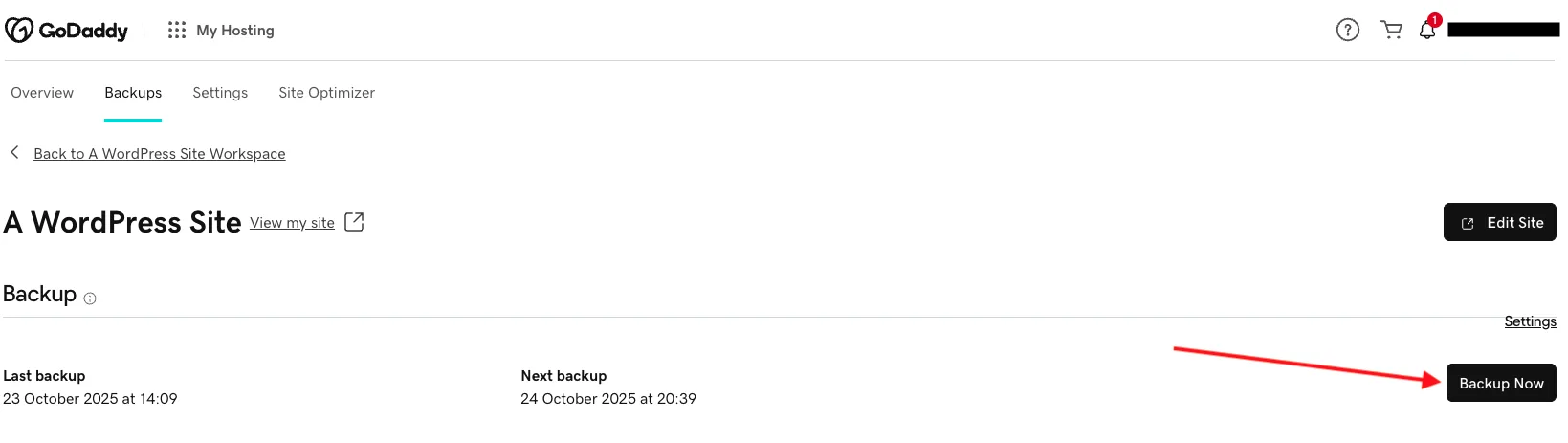
- In your GoDaddy website workspace, click into Manage Hosting, then the Backups tab at the top.
- Backup Now will immediately package your site and database for you.
2. Update WordPress Core and Plugins
If you’re going to start fresh, you might as well start out on the right foot. Go ahead and get all of your plugins, themes, and WordPress core updated to the latest versions.
Note: There are situations where updating everything can break your site. In this case, you may need a developer’s assistance. Go ahead and restore your site from the backup we took and get a free quote from me.
3. Clear Caches
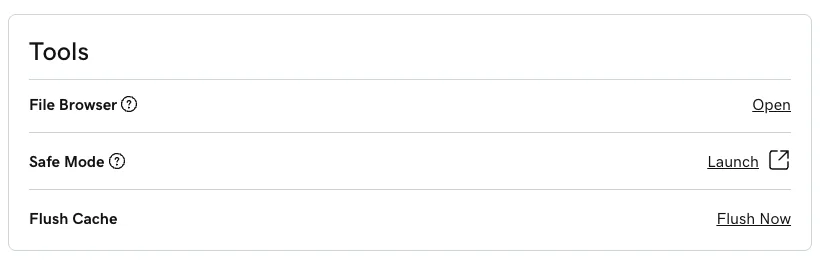
This is just good practice. Clearing old cache files that can sometimes be large enough to matter, and just ensures you’re getting that fresh start with optimal performance. This is also fairly straightforward in GoDaddy, but keep in mind that you’ll need to clear any plugin caches as well, such as WP Rocket, or a theme cache like Divi.
- For plugins or themes, you may find the option to clear cache or flush cache in the plugin or theme configuration menu.
- For GoDaddy, you can simply navigate to the Settings tab right next to the Backups tab we clicked earlier.
Create Site at WP Engine
We need a site environment to migrate to, and if we set this up correctly, it’ll make life easier later in this guide.
- Go ahead and sign into WP Engine if you haven’t already, and click Add Site to add a site to your account.
- The step-by-step process will set you up for a clean site ready to migrate, just give it a few minutes to build once you’re done.
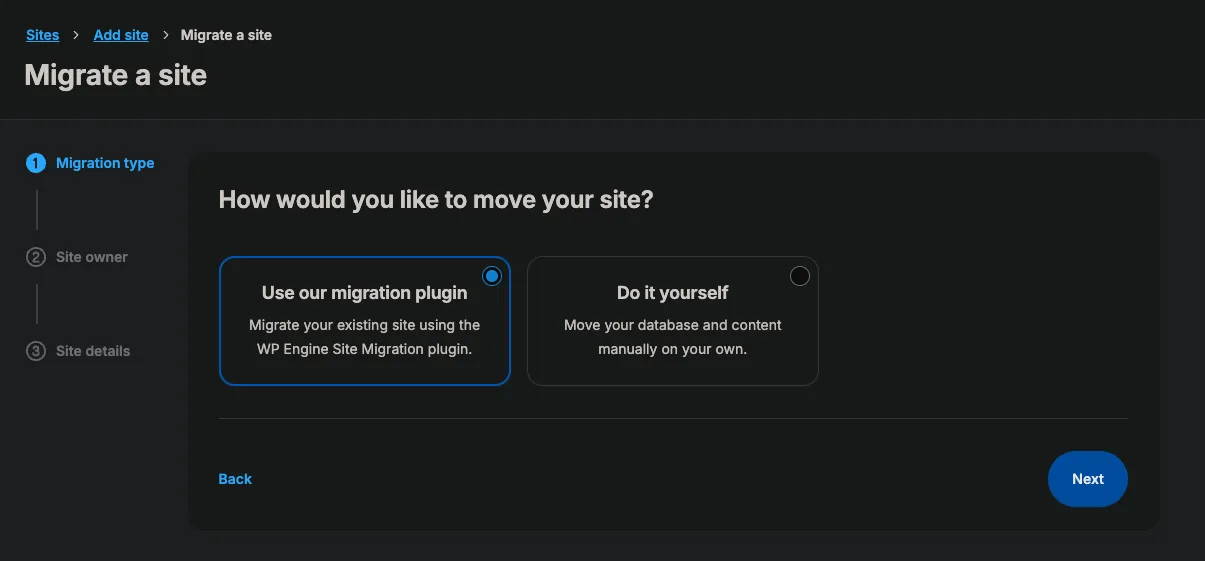
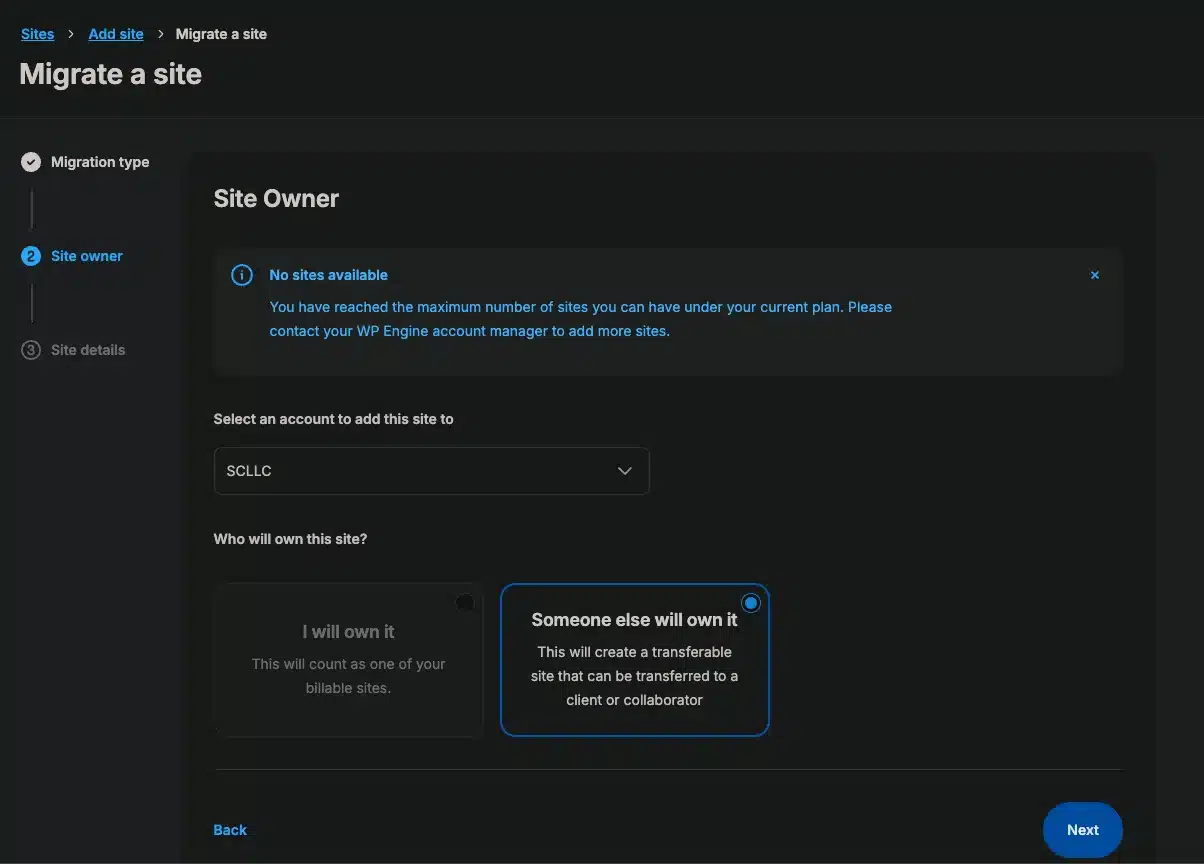
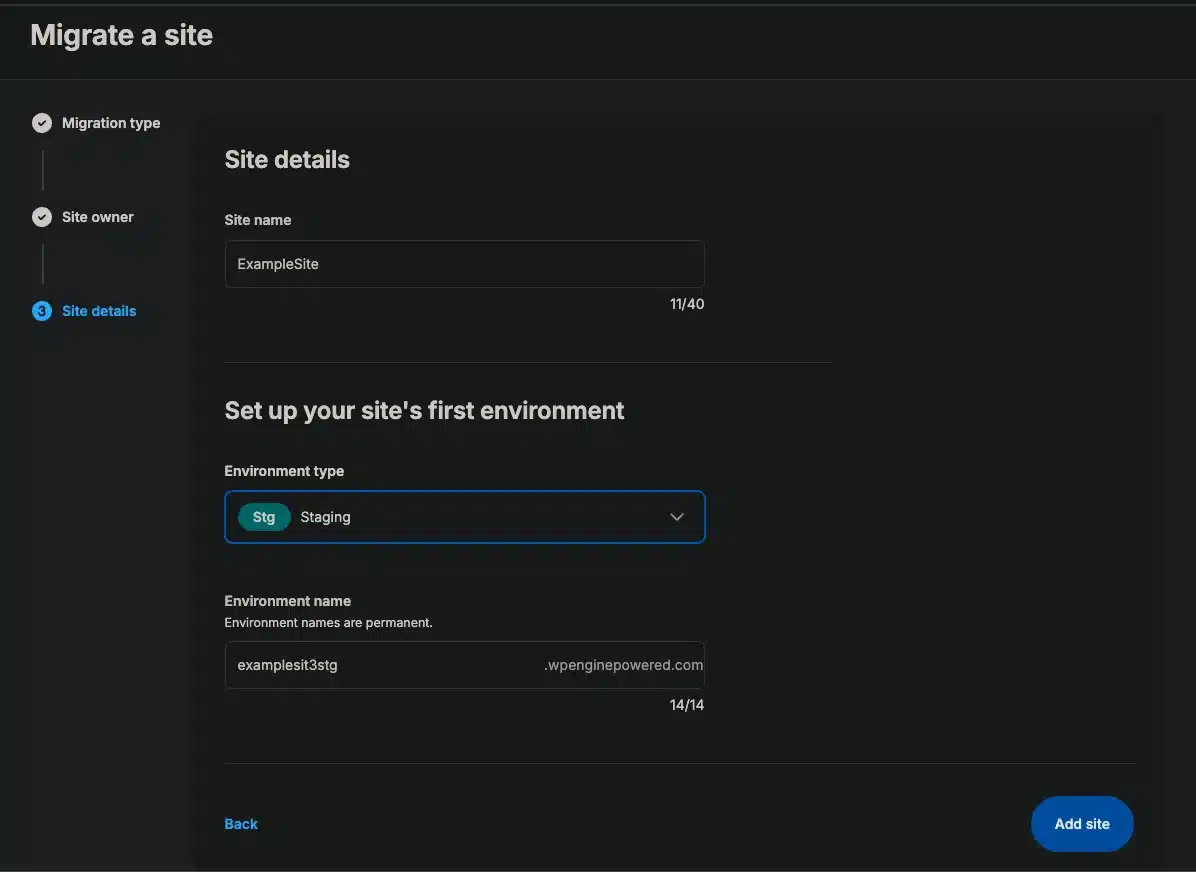
Don’t worry if it tells you no sites available, you can still complete the migration. Just select your account to add it and name your site anything you want. I always start with the Staging environment myself, but Production is fine as well. Nothing will go live until we’re ready.
Automated Migration Process
WP Engine provides several ways to migrate your site. For now, I’ll cover the automated migration which is fine for most sites. I’ll cover the manual migration, which is much more in-depth, in another post.
1. Install the Plugin
We’ll need to install a migration plugin on the source and the destination sites.
- Lucky for us, WP Engine installs the plugin on the destination site for you when you select “Migrate a Site” on the Add Site screen.
- For the source site, download the Site Migration Plugin directly from the same page on WP Engine you’re directed to after creating the environment. Then just upload this to your GoDaddy site and activate.

Note: Make sure you use this one and not the WP Engine Lite plugin in the marketplace.
2. Copy Connection Info
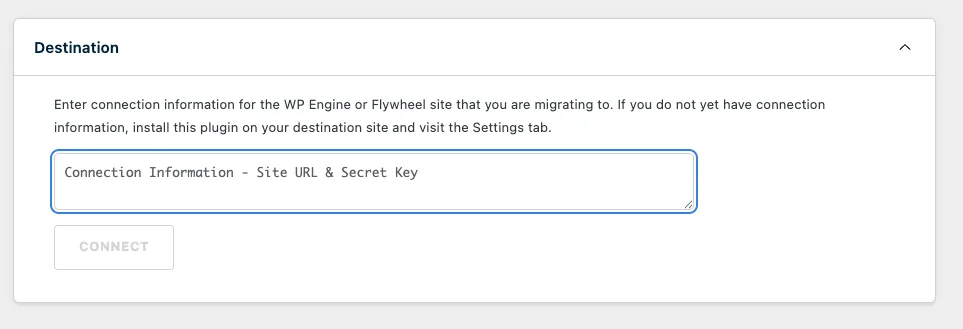
Just underneath that download button we just used is a Connection Info box with a string you’ll need to copy.

3. Enter Connection Info into the Plugin
Simply take that string and paste it into your GoDaddy site plugin configuration. You should be directed straight to the config page when you activate it, but if not, just go to your plugin list, find the WP Engine Site Migration plugin and click Migrate.
- You’ll get a prompt to start a new migration. Click that to go ahead and initiate the process.
- Just paste the string we copied, click “Connect” and wait.
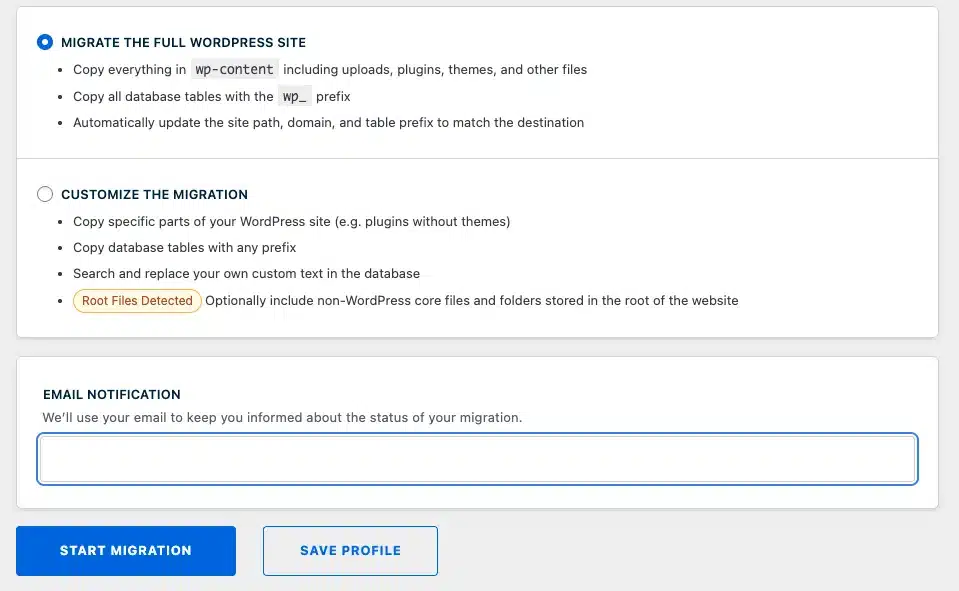
- Once it’s connected, you can select to migrate the full site and start the migration.
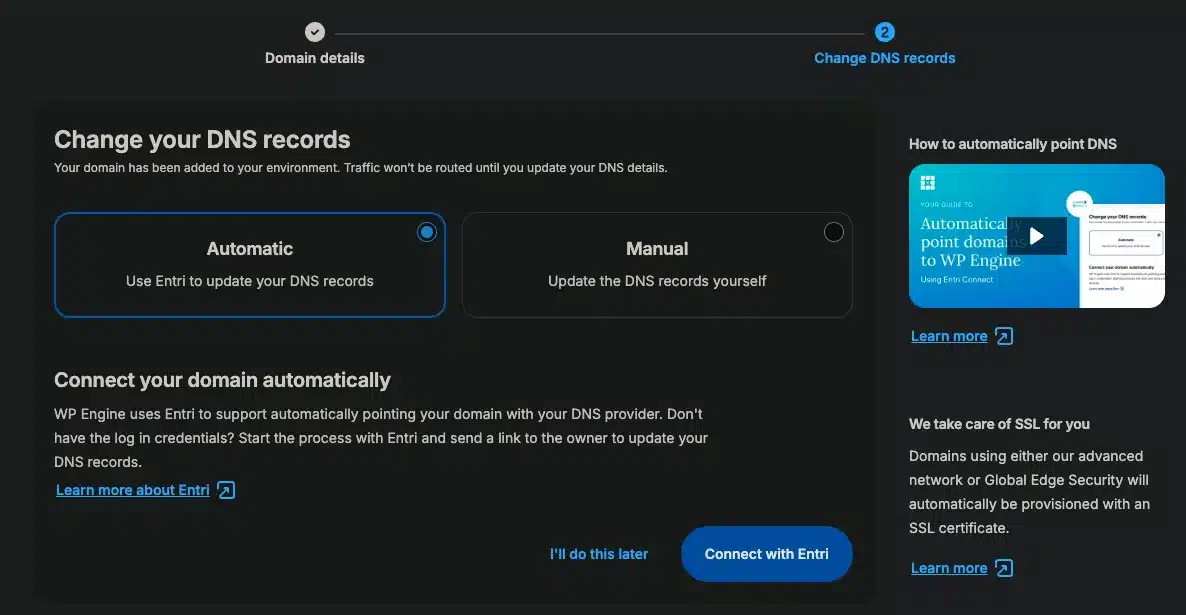
4. Point DNS to WP Engine
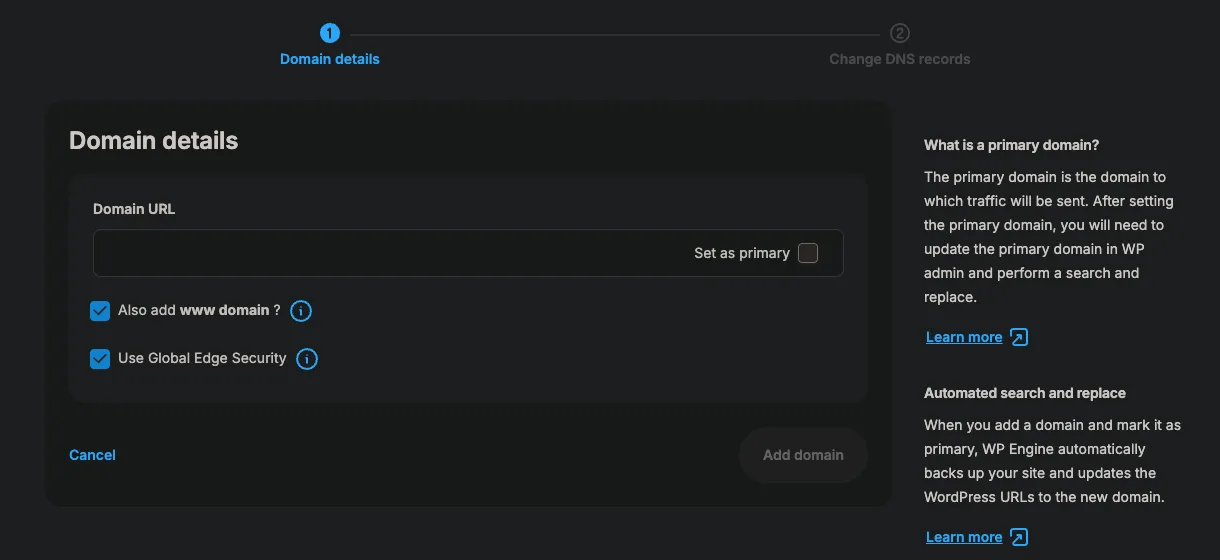
WP Engine makes this incredibly easy. In the left hand menu in your site workspace in WP Engine, you have a menu item under Manage for Domains.
- In this config window, you can click Add Domain to bring up the domain configuration.
- Just enter your existing domain and click Add Domain.
- WP Engine gives you the option to set everything up automatically using Entri, which takes all the hard work out of the DNS updates. You’re done!
Wrapping Up
Technically, that’s all you have to do. Remember, because we’ve kept your old site live until the very end, this entire process is zero-downtime. You should be able to log into your WP Engine site, and hopefully everything looks pretty familiar. Make sure you spot-check to make sure nothing was lost in the process.
Also, you may want to go into your Settings and open the Permalinks manager and just click Save (whether you made any changes or not). This refreshes your permalink structure and is surprisingly the easiest way to fix a lot of odd WordPress errors.
The Host with the Most (Issues)
I’ve migrated so many clients away from GoDaddy. In the developer’s circle, we know to steer clear of certain hosting platforms, and on the top of almost every one of those lists is GoDaddy. Upsells, slow and unpredictable performance, questionable customer support–all of these issues are commonly reported and eventually push clients to abandon the platform altogether. In fact, I find that once most businesses actually start doing business with their website, they’ve long outgrown what GoDaddy can handle.
If you’re ready to migrate now without the hassle, check out my WordPress Migration service and let me handle the hard work for you.
For the rest of you go-getters, the process can be fairly straightforward with a platform like WP Engine, which gives you access to tools like Automated Site Migration, a staging environment (and a bonus development environment), and daily backups.