
Should you switch from GoDaddy to WP Engine? If the site is a brochure with a domain and mailbox on the same invoice, probably not. If it takes leads, payments, or traffic you cannot afford to lose, yes — and you can move without taking the old site down.
This is the comparison I give clients, plus the zero-downtime migration I actually run: automated plugin when it is safe, manual when it is not, how to point a GoDaddy domain at WP Engine, and the SEO checks most vs-articles skip.
GoDaddy vs WP Engine at a glance
Prices move. Treat these as typical September 2026 ranges, not a quote.
| Feature | GoDaddy | WP Engine |
|---|---|---|
| Best for | Domains, email, and a cheap first site | WordPress that already matters to the business |
| Starting price | A few dollars a month on promo shared hosting, then a sharper renewal | Startup typically around $25–$30/month billed annually |
| Bundled on most accounts | None — keep Google Workspace or leave mail at GoDaddy | |
| Staging / dev | On higher managed-WordPress tiers | Staging on every plan; a third environment on many plans |
| Backups | Plan-dependent; easy to miss until you need one | Daily backups with a real restore path |
| Support | Fine for DNS and billing; slow when WordPress itself is broken | WordPress-specific; I have had refunds and cache exclusions resolved in one session |
| Traffic model | Shared neighbors; performance varies | Visit caps on lower plans, with overages if you blow past them |
| Plugins | Whatever you install, including duplicate cache/backup stacks | Blocks overlapping cache/backup plugins because EverCache already owns that layer |
| Migration | You are on your own | Automated plugin included; white-glove on some new annual plans |
Should you switch from GoDaddy to WP Engine?
Stay on GoDaddy if the site is informational, traffic is light, and you actually use the bundled email and domain tools. Paying WP Engine five times the hosting bill to host a five-page brochure is not a strategy.
Switch if any of this is true: the site takes leads or payments, a traffic spike makes you nervous, you have burned hours in GoDaddy chat for a WordPress problem, or you need a staging site you will actually use before touching production.
The DNA split is real. GoDaddy is a registrar that bolted on hosting. WP Engine only does WordPress. That is why the dashboard, backups, and support feel like they were built for this job — and why you should not expect WP Engine to replace GoDaddy as your email host.
What this looks like in practice
The interface. WP Engine invested in the UI. As someone who has lived in cPanel, DigitalOcean, and AWS, I can find user permissions, backups, and bandwidth without a scavenger hunt, and clients can often find them without me. GoDaddy still buries essential tools in menus that do not match how anyone else in this industry labels things.
Customer service. WP Engine support is the reason I keep putting sites there. This year I opened tickets for a refund (my billing mistake), a custom cache exclusion, and a short outage. The refund was processed without a fight. The two technical issues were resolved before the session ended. GoDaddy chat has cost me late nights that ended with me fixing the thing myself.
Cost transparency. WP Engine add-ons are priced in the open, and I do not get surprise invoices unless I caused them. Clients still get blindsided by GoDaddy renewals and add-on security products they did not realize were optional. WP Engine is not cheap. It is predictable. Those are different problems.
Want this handled? WP Engine migration service — zero-downtime moves with redirect and SEO checks — or request a migration quote.
Pre-flight Checklist
Let’s take care of some things before we jump into a brand-new, shiny environment.
1. Back Up Your Current Site
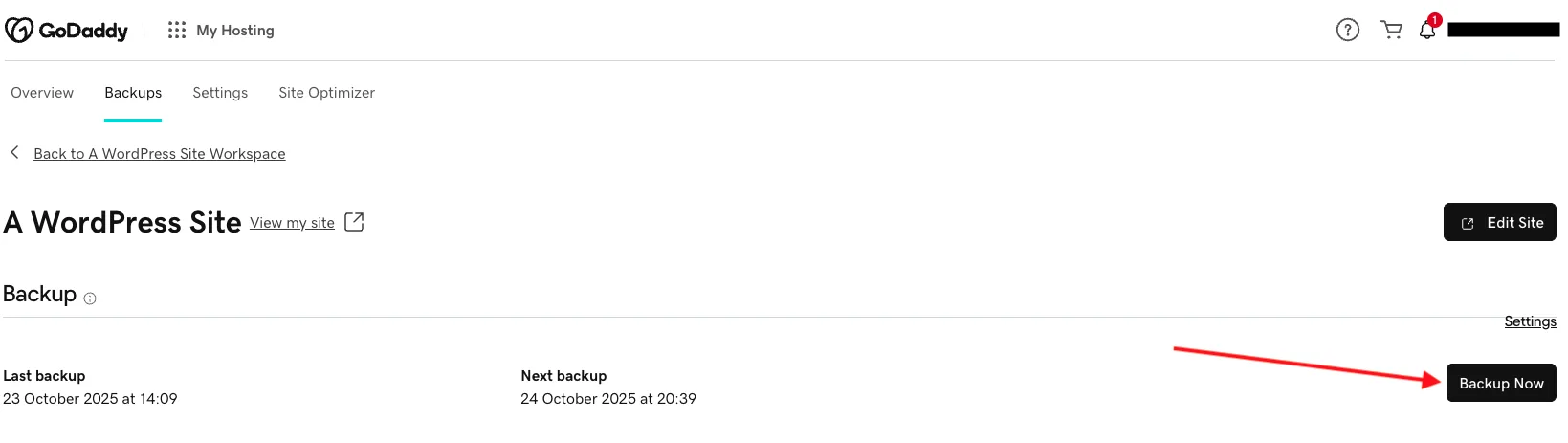
The first thing you should always do before initiating a migration is back up your entire WordPress site and database. If anything goes wrong, you’re going to want to be able to restore from a backup. Luckily, this is fairly easy with GoDaddy.
- In your GoDaddy website workspace, click into Manage Hosting, then the Backups tab at the top.
- Backup Now will immediately package your site and database for you.
2. Update WordPress Core and Plugins
If you’re going to start fresh, you might as well start out on the right foot. Go ahead and get all of your plugins, themes, and WordPress core updated to the latest versions.
Note: There are situations where updating everything can break your site. In this case, you may need a developer’s assistance. Go ahead and restore your site from the backup we took and get a free quote from me.
3. Clear Caches
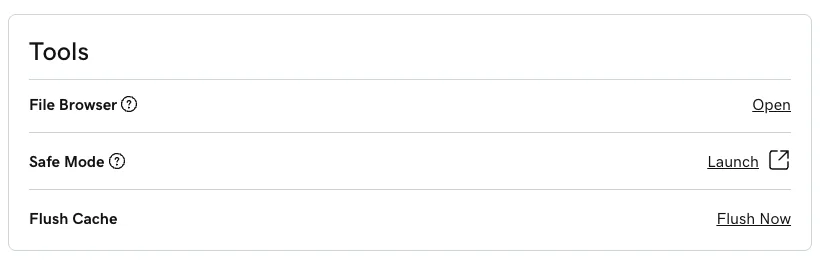
This is just good practice. Clearing old cache files that can sometimes be large enough to matter, and just ensures you’re getting that fresh start with optimal performance. This is also fairly straightforward in GoDaddy, but keep in mind that you’ll need to clear any plugin caches as well, such as WP Rocket, or a theme cache like Divi.
- For plugins or themes, you may find the option to clear cache or flush cache in the plugin or theme configuration menu.
- For GoDaddy, you can simply navigate to the Settings tab right next to the Backups tab we clicked earlier.
Create Site at WP Engine
We need a site environment to migrate to, and if we set this up correctly, it’ll make life easier later in this guide.
- Go ahead and sign into WP Engine if you haven’t already, and click Add Site to add a site to your account.
- The step-by-step process will set you up for a clean site ready to migrate, just give it a few minutes to build once you’re done.
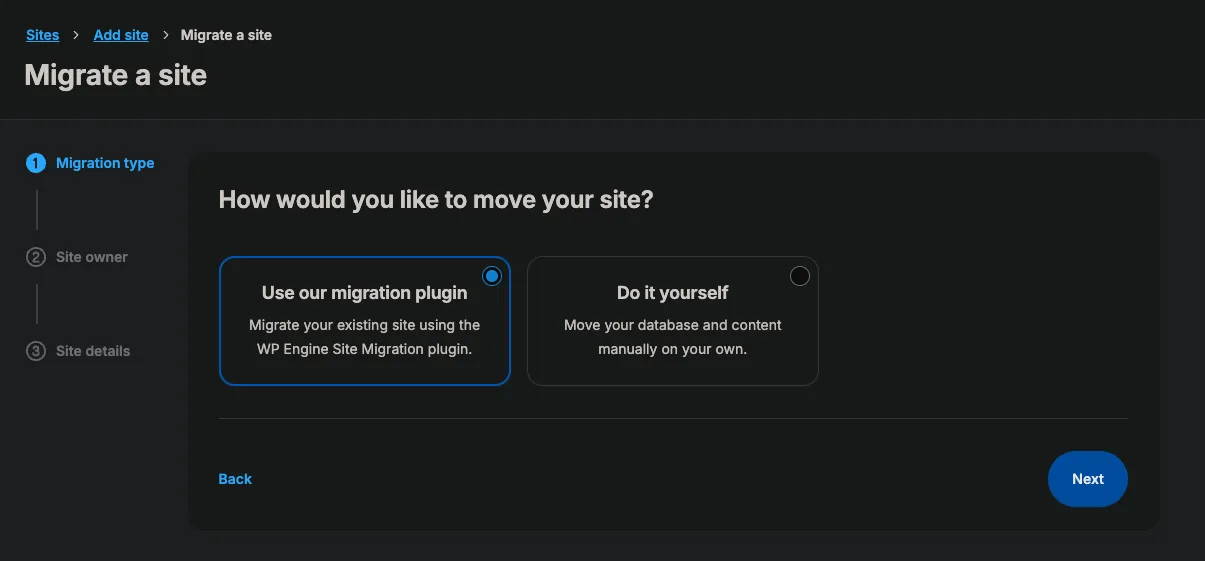
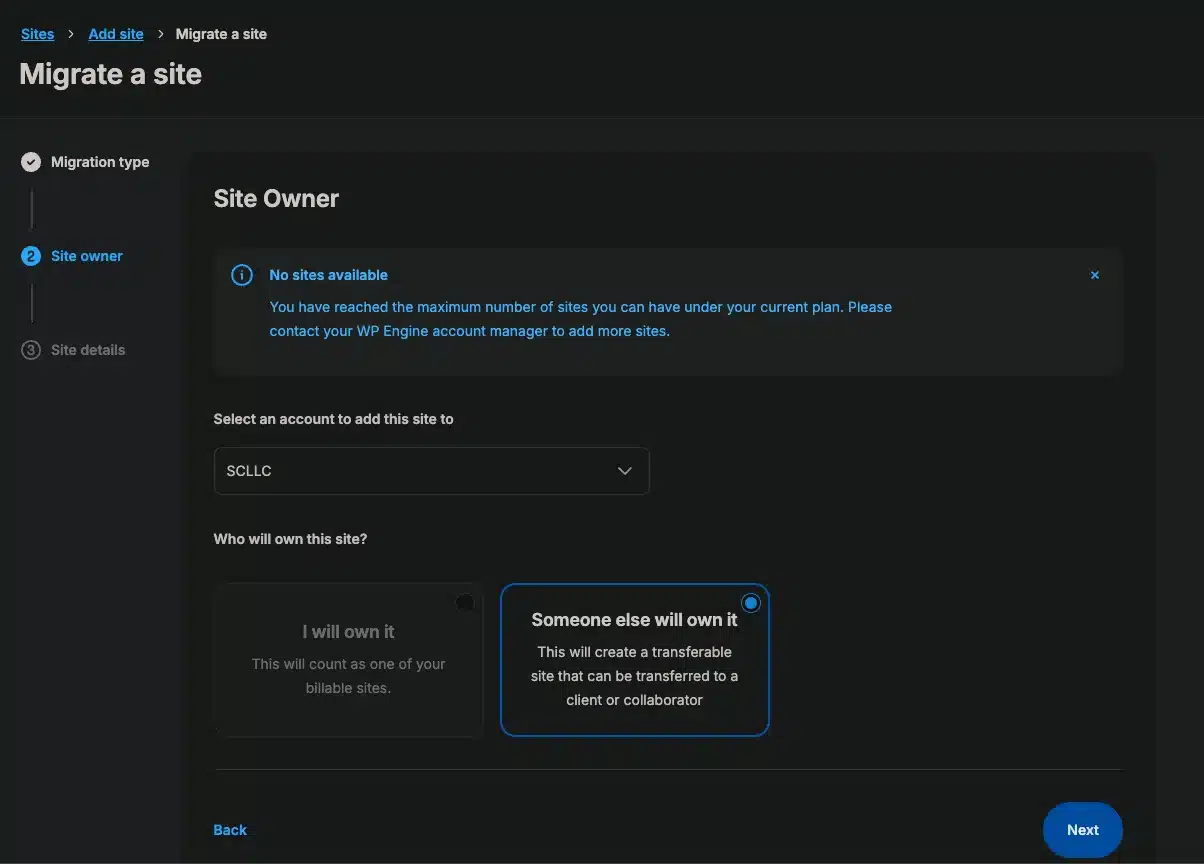
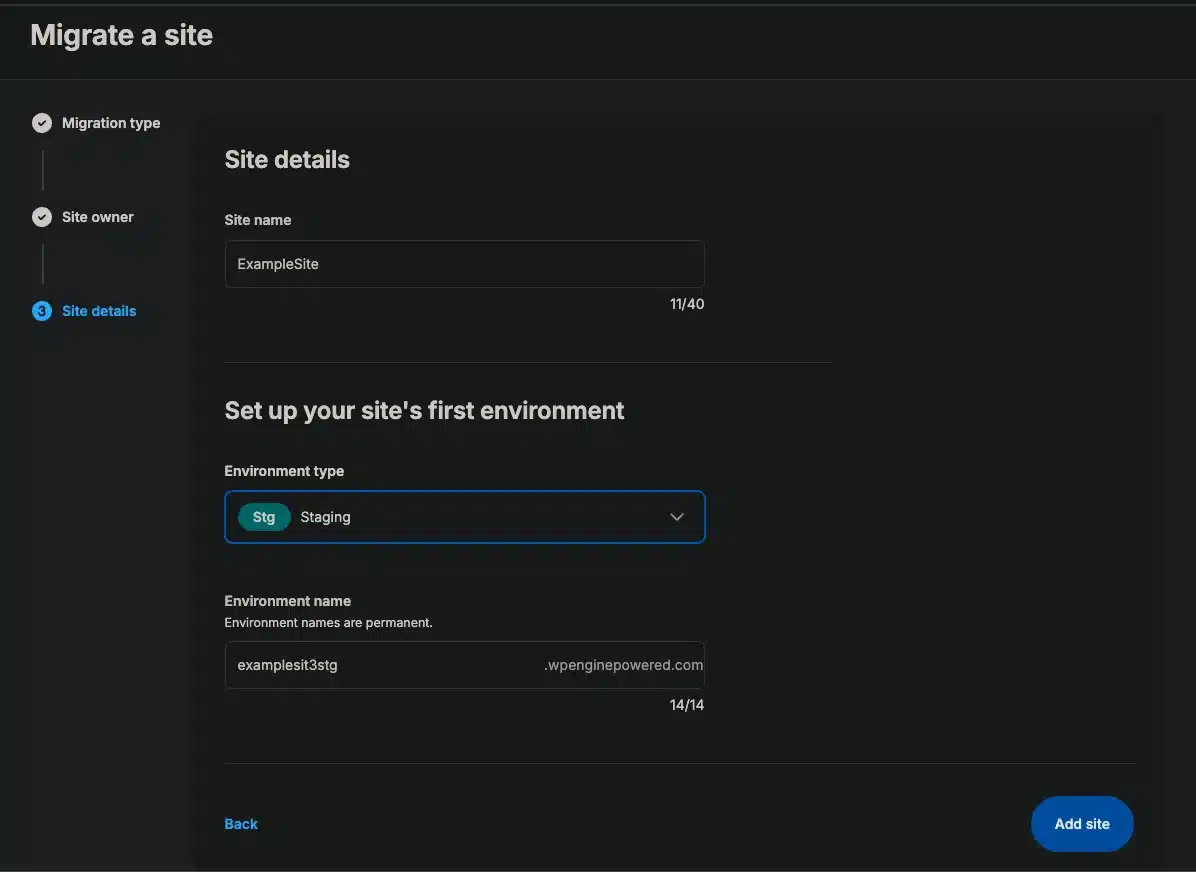
Don’t worry if it tells you no sites available, you can still complete the migration. Just select your account to add it and name your site anything you want. I always start with the Staging environment myself, but Production is fine as well. Nothing will go live until we’re ready.
Automated Migration Process
WP Engine includes automated migration with the account. For a typical marketing site it is enough. It is not the right tool for every site — I will flag when to stop and go manual instead of promising a second post that does not exist.
1. Install the Plugin
We’ll need to install a migration plugin on the source and the destination sites.
- Lucky for us, WP Engine installs the plugin on the destination site for you when you select “Migrate a Site” on the Add Site screen.
- For the source site, download the Site Migration Plugin directly from the same page on WP Engine you’re directed to after creating the environment. Then just upload this to your GoDaddy site and activate.

Note: Make sure you use this one and not the WP Engine Lite plugin in the marketplace.
2. Copy Connection Info
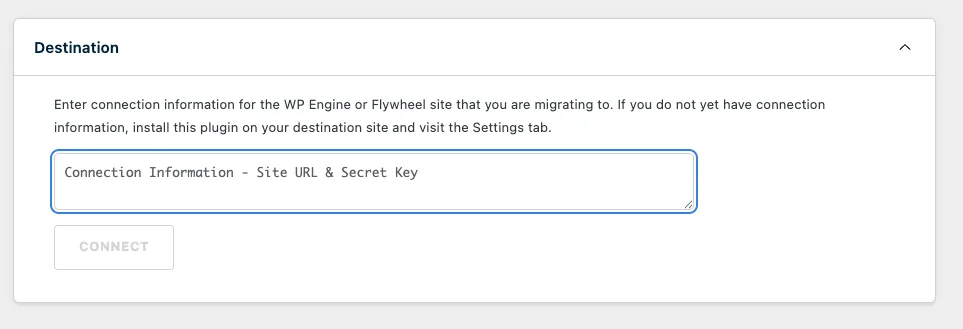
Just underneath that download button we just used is a Connection Info box with a string you’ll need to copy.

3. Enter Connection Info into the Plugin
Simply take that string and paste it into your GoDaddy site plugin configuration. You should be directed straight to the config page when you activate it, but if not, just go to your plugin list, find the WP Engine Site Migration plugin and click Migrate.
- You’ll get a prompt to start a new migration. Click that to go ahead and initiate the process.
- Just paste the string we copied, click “Connect” and wait.
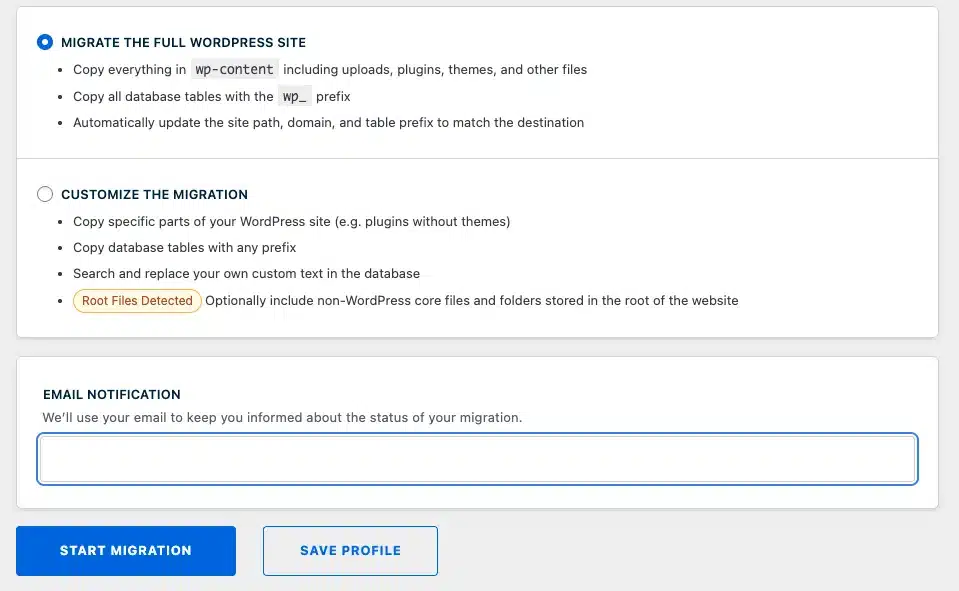
- Once it’s connected, you can select to migrate the full site and start the migration.
4. Point DNS to WP Engine
This is the cutover. Until DNS moves, GoDaddy is still live and WP Engine is a copy. That is why this can be zero-downtime if you do not delete the old host first.
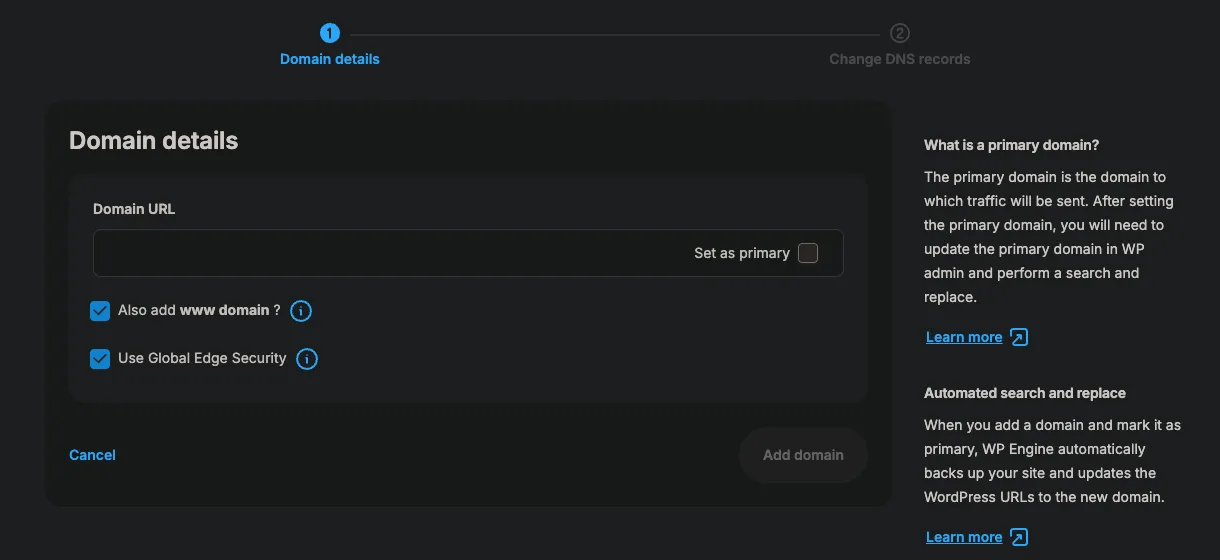
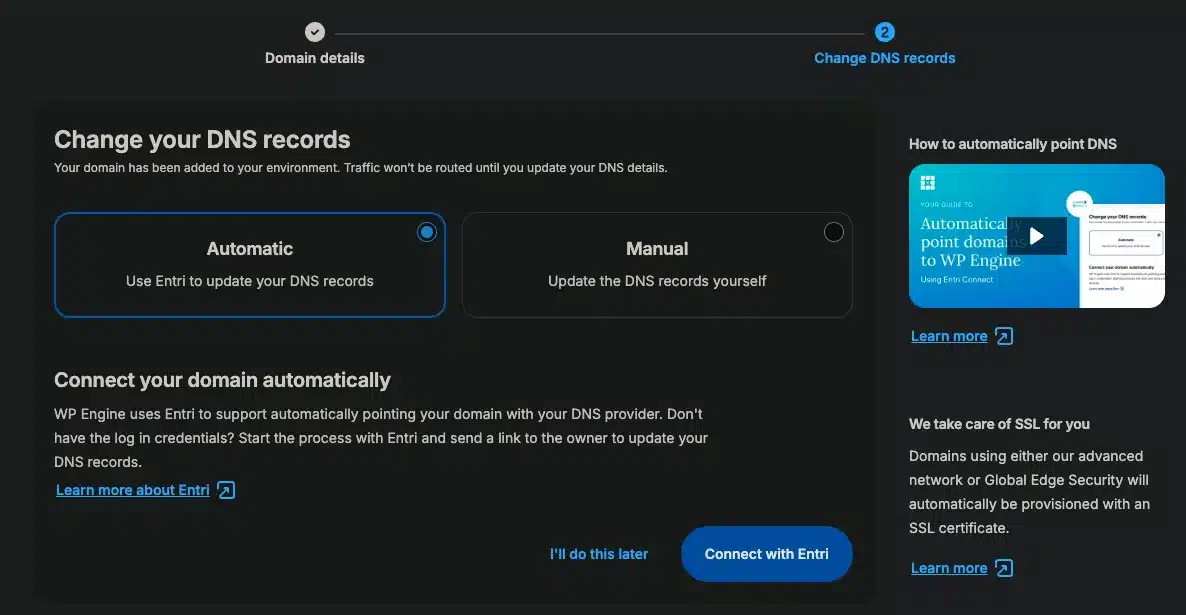
In the WP Engine site workspace, open Manage → Domains.
- Click Add Domain and enter the live domain (example.com and www if you use both).
- If WP Engine offers Entri, use it when the domain is still at GoDaddy or another supported registrar. It writes the records for you.
- If Entri is not an option, do it by hand at GoDaddy: DNS → Manage DNS. Drop the TTL on the current A record to 600 seconds a few hours before cutover. Then point the apex (@) A record to the IP WP Engine shows on that domain screen, and point www as a CNAME to the hostname WP Engine lists. Do not delete the old GoDaddy hosting until those records resolve everywhere you care about.
- Leave the GoDaddy site running until you have checked the WP Engine copy on the real domain.
When the automated plugin is the wrong tool
Use the WP Engine Site Migration plugin when the site is a normal WordPress install: theme, plugins, uploads, one database. Do not use it as a personality test. Stop and go manual when you hit any of these:
- The plugin times out or sits on “in progress” past an hour on a large uploads directory.
- WooCommerce, custom tables, or a plugin that stores serialized PHP in the database.
- Must-use plugins, a nonstandard
wp-contentpath, or a site that was already migrated once and still has old host URLs in the database. - You need a clean search-replace, not whatever the plugin guessed.
WP Engine does migrate existing sites for free in the sense that the plugin is included. White-glove / concierge migration is a separate offer on some new annual plans — ask before you assume a human will copy the site for you.
Manual, short version: back up files and the database on GoDaddy, create the WP Engine environment, copy files over SSH or SFTP, import the database, then run a serialized search-replace for the old URL (WP-CLI search-replace, not a raw SQL UPDATE). Spot-check wp-config, salts, and any hardcoded .local or old-host URLs. Then do DNS, not before.
Wrapping Up
Technically, that is the move. Because the old site stayed live until DNS flipped, this is zero-downtime if you did not delete GoDaddy hosting first. Log into the WP Engine copy on the real domain and spot-check the pages that make you money, not just the homepage.
Then go to Settings → Permalinks and click Save, whether you changed anything or not. That rewrite flush is still the fastest way to fix a lot of odd WordPress errors after a host change.
SEO issues when you migrate to WP Engine
Most rankings that “die in a migration” were not Google panicking. They were URL changes, mixed content, or a sitemap Google could not fetch. If you keep the same domain and the same permalinks, this is a hosting change, not a new site.
- Do not change the slug or permalink structure as part of the move.
- After DNS, open Google Search Console on the same property, request indexing on the homepage, and resubmit
https://yoursite.com/sitemap_index.xml. - Crawl the live domain for leftover GoDaddy, staging, or
.localURLs in the HTML. Those are ranking leaks, not “cache.” - Check HTTPS and mixed content. WP Engine will terminate SSL; your content still has to point at https.
- Spot-check the URLs that already get impressions — for a lot of sites that is the homepage plus one or two posts — and watch 404s for a week.
If you tested on a WP Engine temporary hostname, run search-replace for that hostname too. Leaving it in the database is how you get “the CSS is missing” tickets two days later.
FAQ
Should I switch from GoDaddy to WP Engine?
Switch if the WordPress site is doing real work — leads, checkout, or traffic you cannot put on shared neighbors. Stay if it is a brochure and you like having email and the domain in one GoDaddy bill.
Does WP Engine migrate existing sites for free?
The automated migration plugin is included. That is free in the way that matters for a straightforward WordPress site. A human-led migration is not automatically included; it shows up on some new annual plans. Ask WP Engine what you actually bought before you schedule around a concierge that is not on the invoice.
Is the automated WP Engine migration enough?
For most brochure and content sites, yes. For WooCommerce, custom tables, huge media libraries, or a site that has already been copied twice, do it manually. The plugin failing silently is worse than taking an extra hour on purpose.
Will SEO drop if I point my GoDaddy domain to WP Engine?
Not because of the host name on the invoice. SEO drops when URLs change, when HTTP/HTTPS or www/non-www flips without redirects, or when the new copy still has old host URLs in the HTML. Keep the domain, keep permalinks, flush them, resubmit the sitemap.
How do I point a GoDaddy domain to WP Engine?
Add the domain in WP Engine first. Use Entri if it is offered. Otherwise in GoDaddy DNS, point the A record for @ at the IP WP Engine shows, and CNAME www to the hostname they list. Lower TTL beforehand. Do not cancel GoDaddy hosting until the new site loads on the real domain.
Migrating away from WP Engine
Sometimes the right move is off WP Engine — to DigitalOcean, another managed host, or a rebuild. Use the same discipline in reverse: staging copy, redirect map, DNS cutover, and proof that forms and cron still fire before you cancel the old plan. If that is your situation, start at WordPress migrations & rescue.
The Host with the Most (Issues)
I have moved a lot of clients off GoDaddy as part of WordPress migration work. In developer circles it is on the short list of hosts we try not to inherit. Upsells, uneven performance, and support that cannot debug WordPress are the usual reasons. Once a business is actually doing business on the website, they have usually outgrown what GoDaddy shared hosting can handle.
If you want this handled rather than turned into a Saturday project, request a migration quote and I will tell you whether the automated plugin is enough. If you want to do it yourself, WP Engine gives you automated site migration, a staging environment, and daily backups.
If the site is already a pile of logins and nobody trusts the reports, that is a systems problem, not a hosting coupon. I wrote about that in software sprawl. And if forms start filling with junk after you move, read how I lock down WordPress lead forms — or put care on a retainer via WordPress care & security.